
In this guide · 19 sections
Summary in plain words
- Screening means deciding, with criteria written in advance, which search results go into your review.
- Do it in two phases: title and abstract first, then the full text of what passed.
- Two people deciding blind catch each other's mistakes in the conflicts.
- Record a reason for every exclusion: your PRISMA numbers come from there.
- In Kanban Pesquisa, the Screening area does all of this inside the project, free plan included; on paid plans, Juno helps without deciding.
What screening is
Screening is the stage of a review where you go through your search results and decide, study by study, what goes in and what stays out. It is not in-depth reading: it is a quick selection, guided by criteria you set before you start.
It sits between the search and your reading notes. A search across three databases easily returns hundreds of results, many of them duplicates or off topic. Screening narrows that pile down to the studies worth reading in full, and records why the others were left out.
- SearchHundreds of database results.
- Title and abstractQuick call: include, maybe or exclude.
- Full textReading the PDF of what passed.
- Reading notesNotes only for included studies.
When you need formal screening
Every review involves some selection, but formal screening, with written criteria and a record of every decision, pays off in three situations:
- Systematic, scoping or integrative reviews. Here screening is part of the method: the criteria come before the search, every exclusion has a reason and the whole path becomes a PRISMA flow diagram.
- Narrative reviews with many results. If your searches returned more than a hundred studies, deciding by criteria saves you from reading what does not fit and helps you describe the selection in your methods.
- Selection done as a team. When two or more people choose the studies, such as a student and a supervisor or a research group, screening shows who decided what and where they disagreed.
If you have a handful of papers your supervisor already suggested, you do not need formal screening. Just note why each one is in; it helps when you write the methods.
Before you start: criteria and ground rules
Inclusion and exclusion criteria are the rules that decide for you. Written in advance, they keep fatigue or a soft spot for an author from shifting the selection halfway through. Many fields build them with PICO (population, intervention, comparison and outcome) or, for scoping reviews, PCC (population, concept and context).
| Aspect | Include | Exclude |
|---|---|---|
| Population | K-12 students and teachers | Higher education and short courses |
| Topic | Emergency remote or hybrid teaching | Courses designed as online from the start |
| Study type | Empirical studies | Editorials, opinion pieces and book reviews |
| Period and language | 2020 to 2026, in English, Spanish or Portuguese | Outside the period or in other languages |
Your exclusion reasons come from the criteria, and you pick one each time a study goes out: “wrong population”, “outside the period”, “not an empirical study”. A short list, four to eight reasons, keeps the PRISMA diagram readable. Before the first decision, have at hand:
- The review question in one sentence.
- The inclusion and exclusion criteria in writing.
- The list of exclusion reasons.
- Your search log: database, terms, date and number of results.
- How many people will decide each study, and by when.
Screening has targets and deadlines like any other stage. Put them on your task board: everyone sees what is left, and your supervisor can follow along without asking for a report.
How two-phase screening works
Phase 1, title and abstract. You read the title and abstract and decide in a few seconds. In this phase, when in doubt, do not exclude: letting an off-topic study through costs you one PDF; excluding a good one leaves a hole in your review.
Phase 2, full text. You read the PDF of the studies that passed and check every criterion. Here every exclusion needs a reason, because PRISMA reports how many studies were excluded and why.
| Decision | When to use it |
|---|---|
| Include | The study meets the criteria (in phase 1, seems to). |
| Maybe | Not enough information to decide. It is temporary: come back before closing the phase. |
| Exclude | The study fails at least one criterion. Record the reason. |
Reviewers, blind mode and conflicts
When two people screen, each one decides without seeing the other's decision. That is blind mode: it keeps one reviewer from following the other without noticing. When their decisions differ, the study is in conflict.
Conflicts are settled at the end of the phase by going back to the criteria, in a conversation or with a third person, usually the supervisor or the group lead. Many conflicts for the same reason mean a criterion is ambiguous: rewrite it and tell the team.
The Screening area in Kanban Pesquisa
In Kanban Pesquisa, screening happens inside the project, next to your tasks and documents. Each team member decides on their own, and the rest is worked out for you: the status of each study, conflicts, duplicates and the PRISMA 2020 flow diagram.
- Two phases, Title and abstract and Full text, with the studies included in the first moving on to the second.
- One decision per person, with blind mode and conflicts resolved by the project's administrators.
- Highlighted abstracts: inclusion terms in green and exclusion terms in red.
- Keyboard shortcuts so you can decide without leaving the keyboard.
- Duplicates, export and PRISMA on the same screen.
- Juno, on paid plans: gives opinions, proposes criteria, orders the list and drafts the methods, without ever deciding.
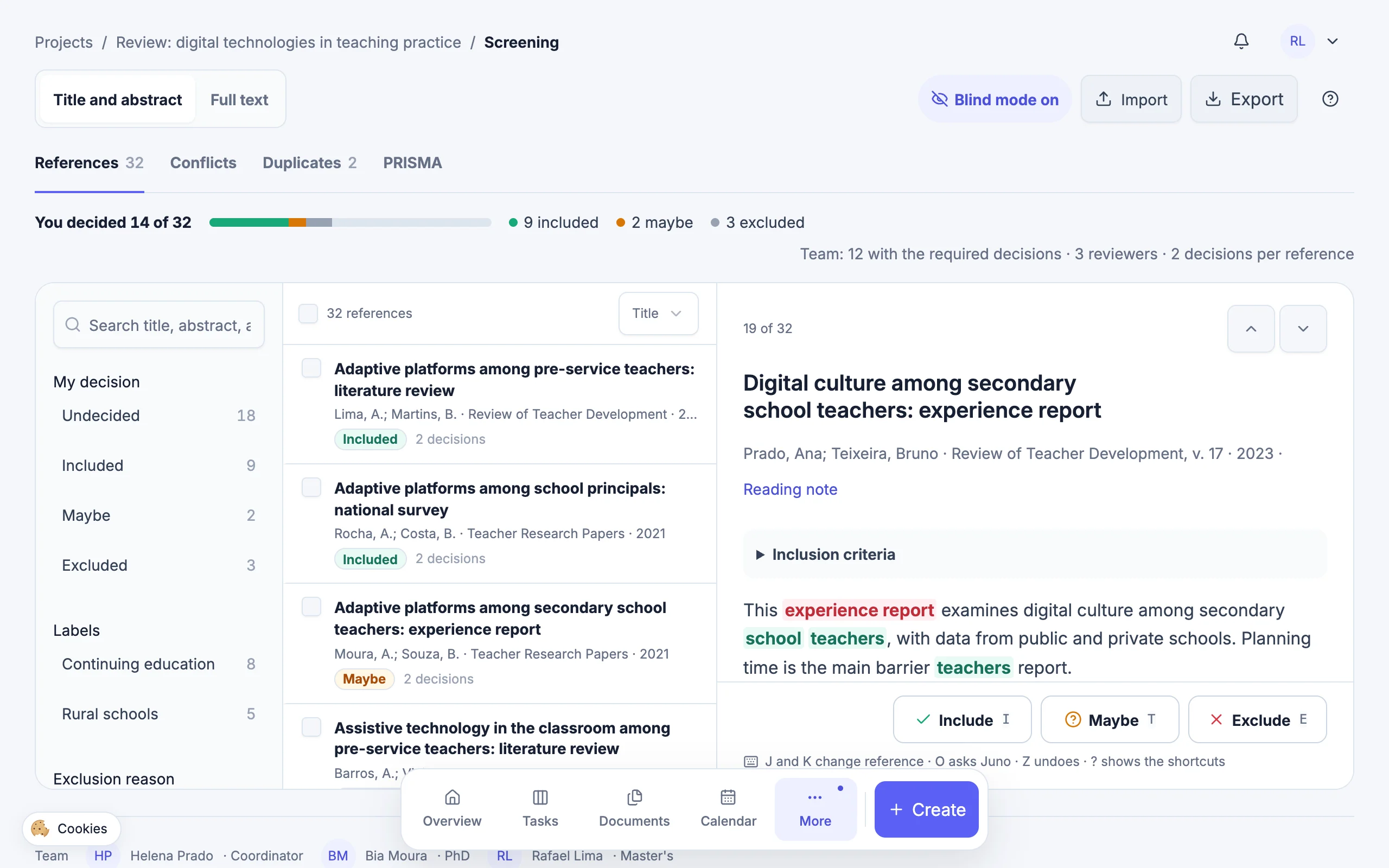
Phase: Title and abstract or Full text.
Progress: how much you decided and how many references have the required decisions.
Filters: your decision, labels, exclusion reason and year.
The reference list, with your decision on each one.
The abstract, with inclusion terms in green and exclusion terms in red.
Decision: Include (I), Maybe (T) or Exclude (E).
Screening is available on every plan, including the free one. The steps below follow the order of a review, from import to the flow diagram.
1. Open Screening and bring in your references
In your project, open Screening in the sidebar, right below Documents; on a phone, it is under More in the bottom menu. When you enter, the sidebar turns into a floating menu to make room for the list, and comes back when you leave. On your first visit, a five-step walkthrough introduces the area; to see it again, use How to use, the question-mark icon in the header.
Screening works on the project's references. To bring in your search results, click Import in the header; it is the same import as in Documents:
- From a file: RIS, BibTeX, CSL JSON or PubMed MEDLINE (.nbib), up to 5 MB and 200 references at a time. Zotero, Mendeley, Rayyan and PubMed export these formats. The file is read in your browser, and you review the list before importing.
- From Zotero: when the Zotero tab shows in the import, connect your account and pick the library and collection.
- One at a time: in Documents, Add › New reference, starting from the DOI.
References with the same DOI become one on import. The abstract comes along when the file has it or when Crossref provides it. If it is missing, the reference says so; paste it into the reference's Abstract field, in Documents.
2. Set up the screening
A project administrator opens Screening settings in the header and sets the rules before the team starts:
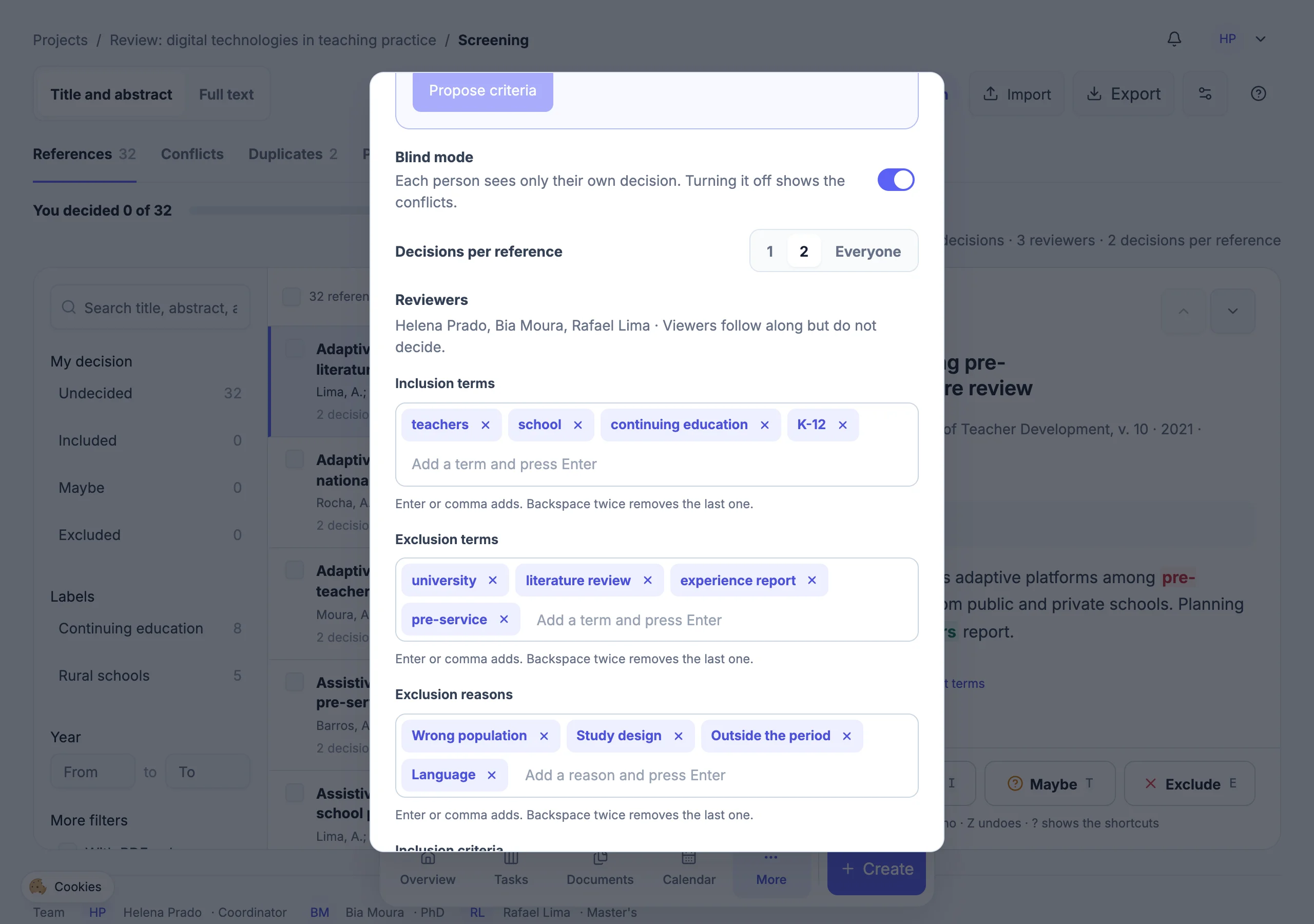
Blind mode, on by default.
Decisions per reference: 1, 2 or everyone.
Reviewers: everyone with the Administrator or Member role.
Inclusion terms, highlighted in green in the abstract.
Exclusion terms, highlighted in red.
| Setting | What it does | Default |
|---|---|---|
| Blind mode | Each person sees only their own decision. | On |
| Decisions per reference | How many matching decisions settle a study's status: 1, 2 or everyone. | 2 |
| Inclusion criteria | Text shown above the abstract for every reviewer. | Empty |
| Inclusion and exclusion terms | Words highlighted in the abstract, in green and red. | Empty |
| Exclusion reasons | Suggestions shown when you exclude. | Empty |
On paid plans, Build the criteria with Juno, in the same settings, proposes these fields from your research question or protocol (see the section on Juno, further down).
Reviewers are the project members with the Administrator or Member role. Viewers follow along but do not decide. To add someone to the screening, invite them in Team.
Decisions per reference never exceed the number of reviewers. In a project of your own, one decision is enough, even with the default set to 2.
3. Remove duplicates
The same study often shows up in two or three databases. In the Title and abstract phase, the Duplicates tab lists pairs of references with a similar title, first author and year, with a similarity percentage and the differing fields highlighted. For each pair, choose:
- Merge marked fields: compare A and B side by side, mark which value stays in each field and confirm. Reference A stays and B is deleted.
- Keep only A or Keep only B: deletes the other one, without choosing field by field.
- Not the same: takes the pair off the list. You can undo it right away.
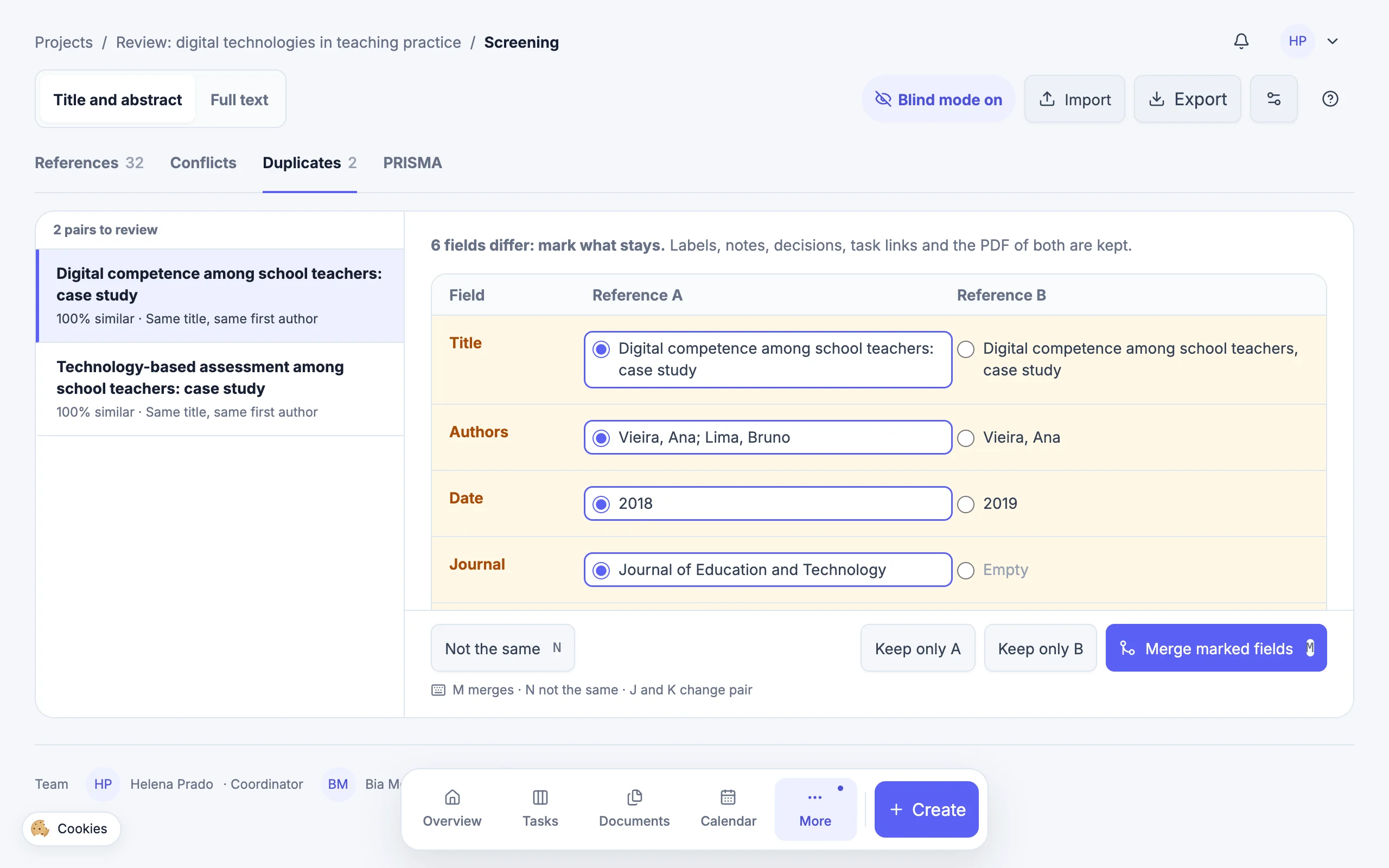
In each field that differs, mark the value that stays.
Not the same: takes the pair off the list.
Keep only A or Keep only B.
Merge marked fields, after a confirmation.
When you merge, labels, notes, task links, the PDF and the reading note move to the reference that stays, and each merge counts as a duplicate removed in PRISMA. Existing decisions move too, for anyone who had not decided the other reference yet; the confirmation explains what happens in each case. That is why this step comes before deciding: nobody screens the same study twice.
4. Screen by title and abstract
Pick a reference in the list. It opens with the title, authors, journal, year, DOI and PDF when there is one, the inclusion criteria and the abstract with the terms highlighted. Read it and decide with the buttons or the keyboard:
| Button | Key | What happens |
|---|---|---|
| Include | I | Marks it included and opens the next one. |
| Maybe | T | Marks it maybe and opens the next one. |
| Exclude | E | Asks for the reason before marking it. |
Title, authors, journal and year; Reading note opens your notes.
The abstract with the terms highlighted; the criteria sit right above.
Include, Maybe or Exclude. The letter next to each is its key.
When you exclude, pick one or more reasons from the list (keys 1 to 9 mark the first ones) or type one in New reason. The PRISMA numbers come from here. You can exclude without a reason, but the diagram will show “No reason”.
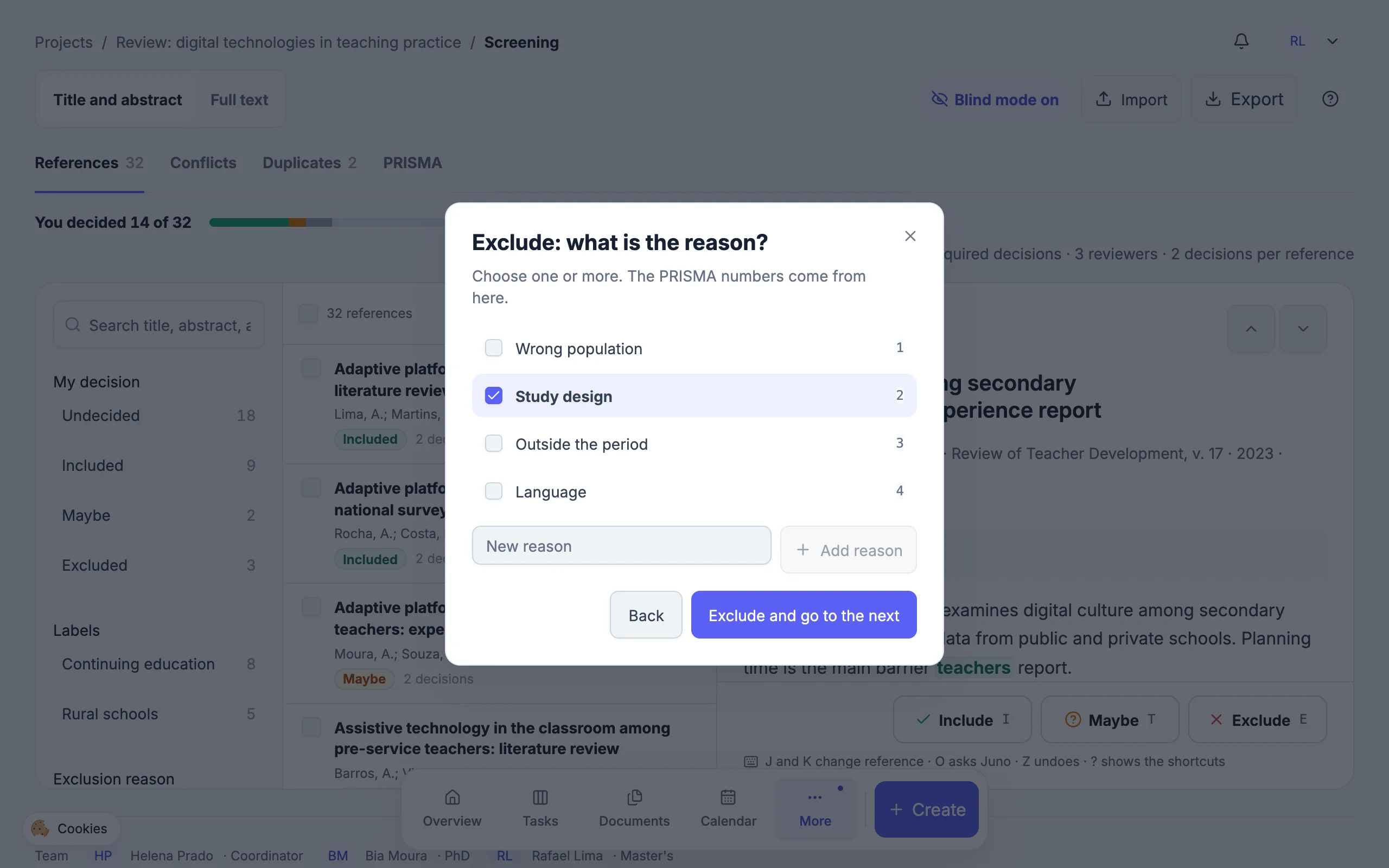
Reasons from the list; keys 1 to 9 tick the first ones.
New reason, when none on the list fits.
Confirms and opens the next reference.
Each decision shows a notice with Undo, which also works with the Z key while the notice is on screen. After that, open the reference again and change the decision, or use Clear decision.
At the top, You decided shows your progress in the phase, and the team line shows how many references already have the required decisions. On a phone, the reference opens over the list, with the decision buttons pinned to the bottom and Back to the list to leave.
5. Use filters, batch actions, labels and notes
- Search: looks in the title, abstract, authors, journal and DOI, ignoring accents and capitals.
- Filters: your decision, the team outcome (with blind mode off), labels, exclusion reason, year and, under More filters, with PDF only or with abstract only.
- Sort: by title, newest or oldest. The list shows 100 at a time; Show more loads the next ones.
- Batch selection: tick several references (or press X) and apply Include, Maybe, Exclude, Clear decision or a label all at once.
- Labels: free-form tags, such as “qualitative” or “discuss at the meeting”. They are the same tags the reference has in Documents and also show up in its search there.
- Notes: comments on the reference for the team. In blind mode, each person sees only their own. The N key opens the field.
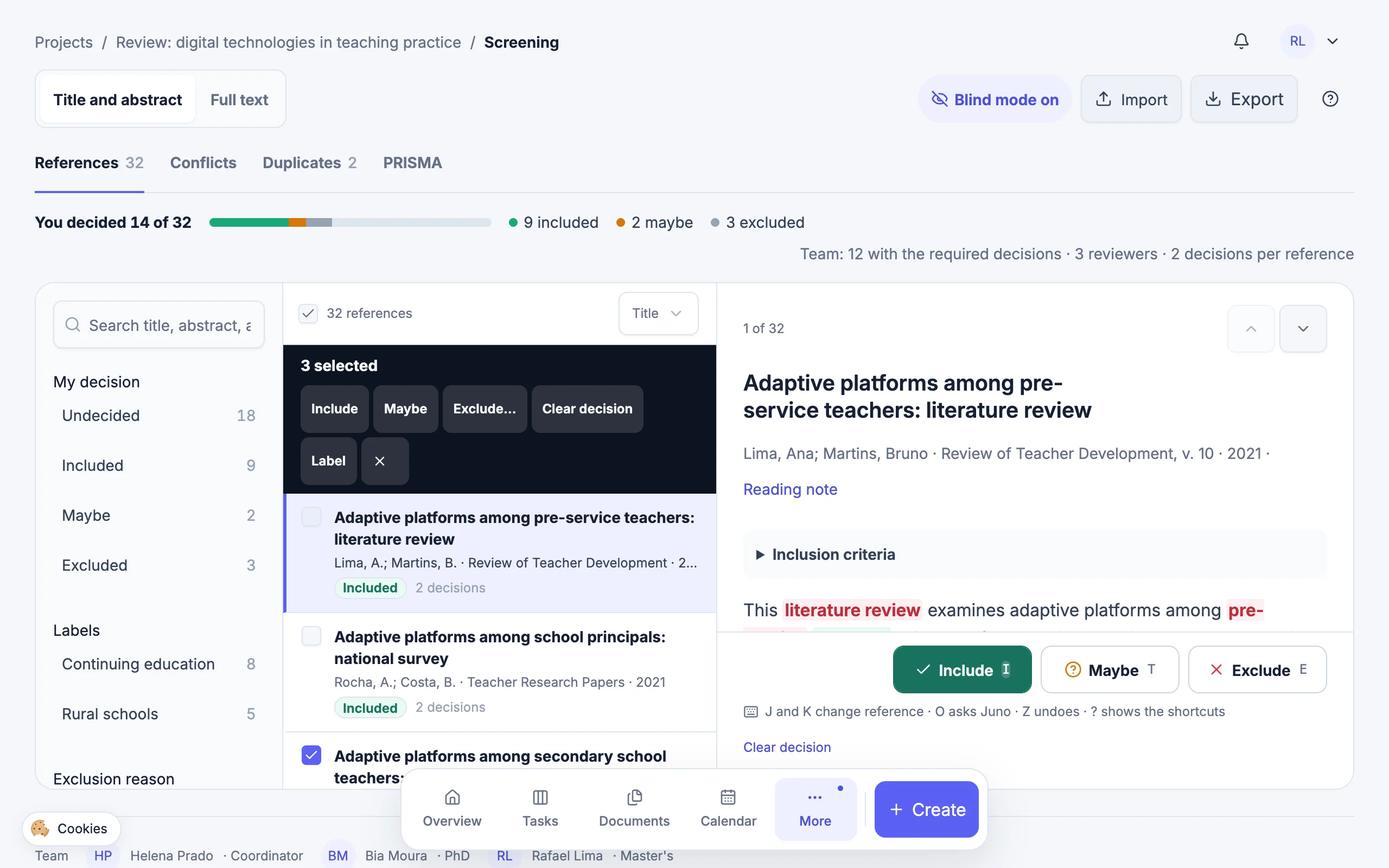
Filters by decision, label, reason and year.
Tick references, or all of them at once (X ticks one).
The batch bar applies the decision or label to every ticked reference.
Before closing the phase, filter My decision › Maybe and settle your doubts: only included references move on to the full text.
6. Resolve conflicts
Once everyone has finished the phase, an administrator turns blind mode off in Screening settings. The Conflicts tab, empty until then, now lists the references where decisions disagree and the ones already resolved, and every open reference now shows the Team decisions, with their reasons.
Discuss each conflict against the criteria and record the Final decision (administrators): Include, Maybe or Exclude. It overrides the individual decisions and can be reversed with Undo the final decision.
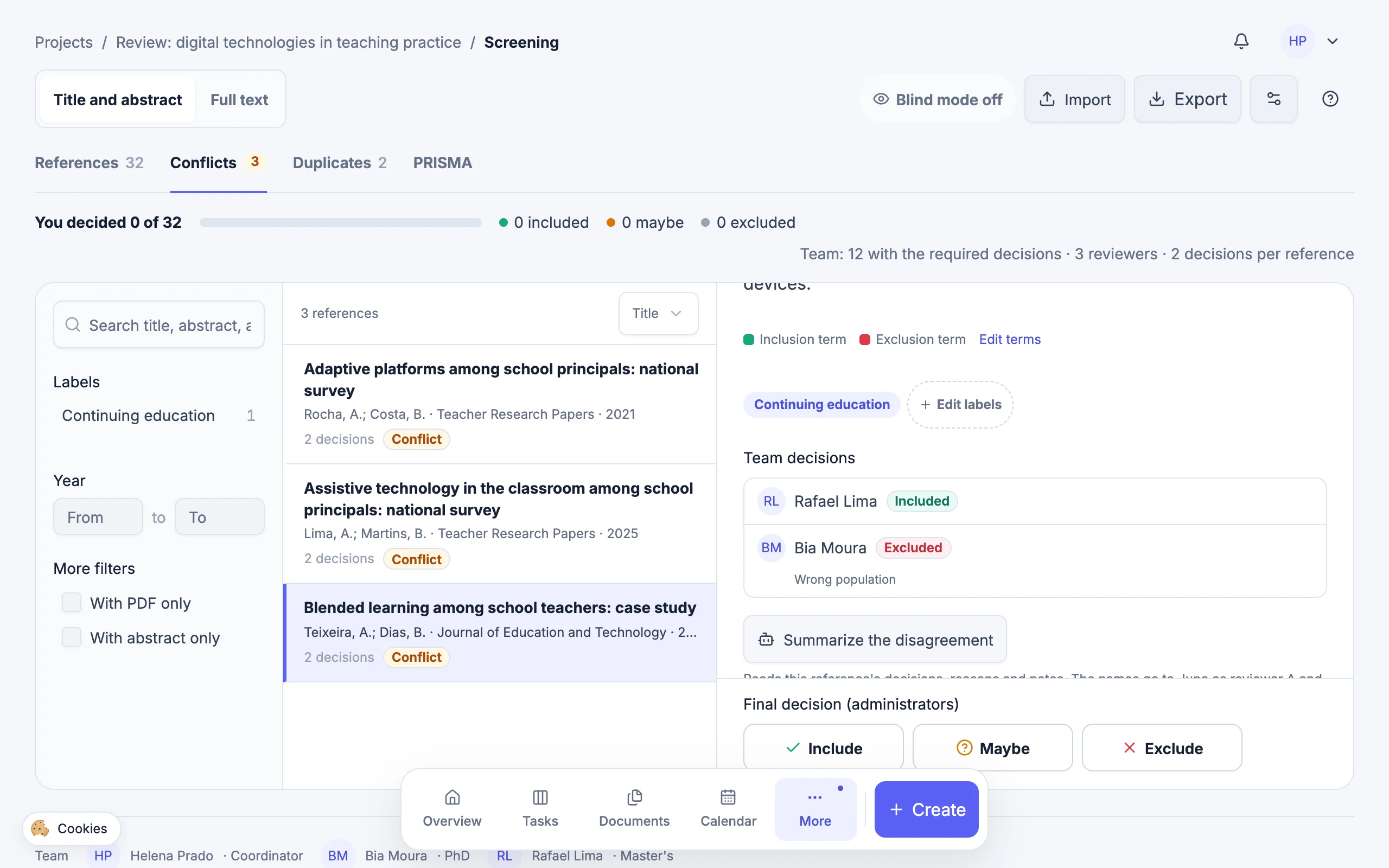
The Conflicts tab, with how many references are in conflict.
The Conflict label in the list.
Team decisions, with the reason for each exclusion.
Summarize the disagreement, with Juno (paid plans).
Final decision (administrators): Include, Maybe or Exclude.
| Status | When it happens |
|---|---|
| Pending | The required number of decisions is not there yet. |
| Included, Maybe or Excluded | The decisions match and reached the required number, or an administrator made the final decision. |
| Conflict | Two people decided differently. It happens right away, even before everyone has decided. |
A reference everyone marked as Maybe is not a conflict: the reviewers go back to it and change their own decisions.
7. Move on to the full text
In the header, switch the phase to Full text. It lists only the references whose title and abstract status is Included. Pending, maybe and conflicting ones stay in the first phase until they are settled.
Open the PDF with Open PDF when the reference has the file, or follow the DOI with Open DOI. Check every criterion and decide again; now every exclusion should have a reason. The PDF is attached to the reference itself, in Documents, and the With PDF only filter shows what you still need to find.
An included study is a study to take notes on. In the open reference, Reading note takes you to your notes without leaving the screening; writing reading notes is a paid-plan feature.
8. Build the PRISMA diagram and export
The PRISMA tab builds the PRISMA 2020 flow diagram from the final status of both phases: records identified, duplicates removed, records screened, excluded on title and abstract, reports sought, not retrieved, assessed, excluded with their reasons and studies included. Since the numbers depend on the team's decisions, the diagram only shows with blind mode off.
An administrator enters the Databases searched, with the number of records found in each (without databases, the total comes from the project's references), and the PDFs not retrieved. Anything still pending, maybe or in conflict is listed in a note below the diagram. Download it as SVG or PNG for your thesis or paper.
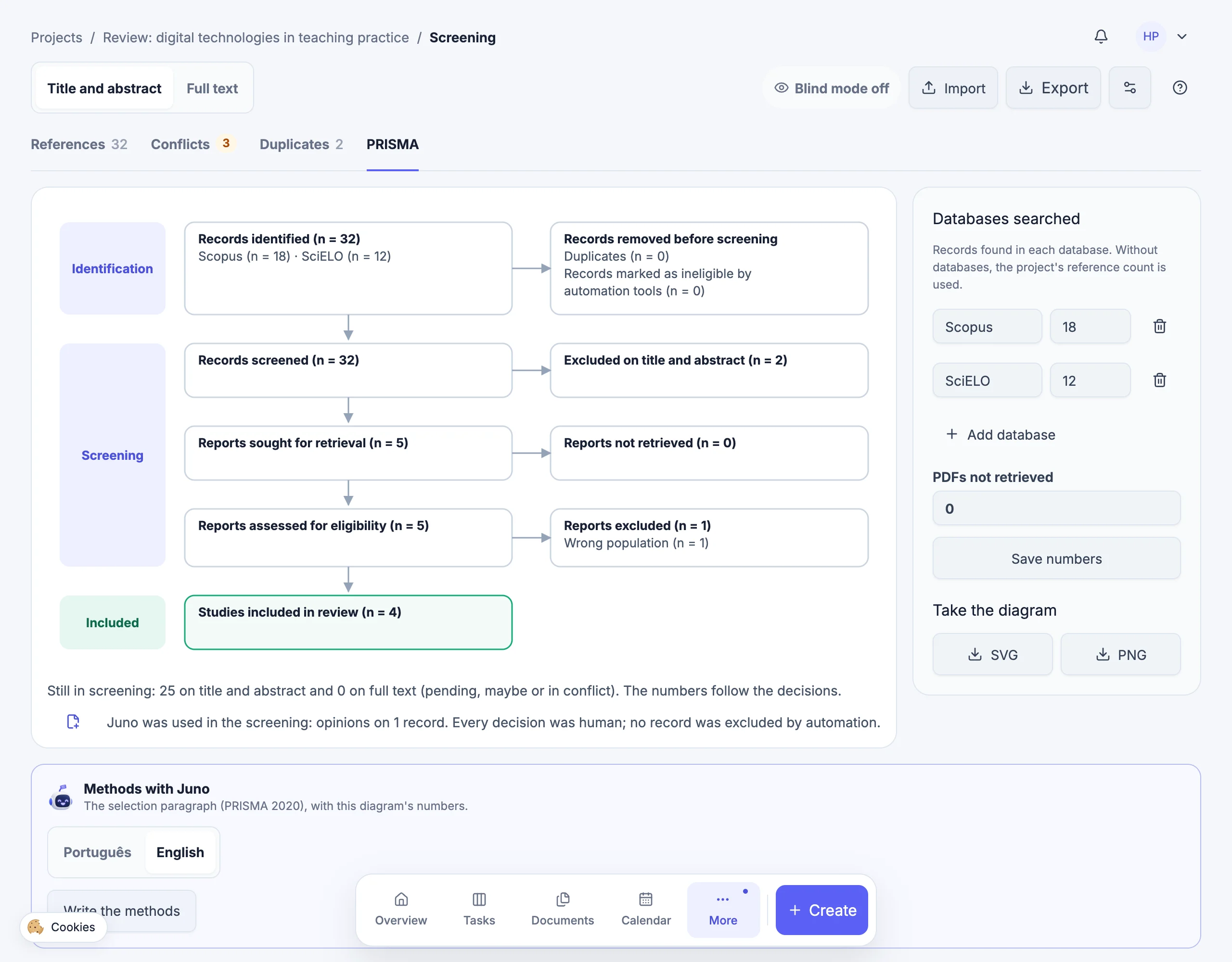
Records identified, from the databases searched.
Excluded on title and abstract.
Reports excluded at full text, with the reasons.
Studies included in the review.
Databases searched and PDFs not retrieved, entered by administrators.
Download the diagram as SVG or PNG.
Export, in the header, takes the visible list or the whole phase as a CSV spreadsheet or as RIS, with labels, decisions, reasons and notes in Rayyan's note format, which the import also reads. Blind mode applies here too: with it on, only your own decision goes out. Before you close the screening, check:
- No pending, maybe or conflicting references left in either phase.
- Databases searched and PDFs not retrieved filled in.
- A reason for every full-text exclusion.
- The diagram downloaded and the spreadsheet exported with your project files.
Juno in the screening (paid plans)
On the Premium and Super Premium plans, Juno, Kanban Pesquisa's AI assistant, helps at several stages of the screening. The project owner's plan is the one that counts. On the free plan, screening works in full, without Juno.
Juno never decides: it does not include, exclude, resolve conflicts or merge duplicates. Anything that changes the project (criteria, reading note or document) goes through a preview and is saved only when you confirm.
| Help | Where | Who asks |
|---|---|---|
| Opinion on a reference | Open reference: Ask Juno for an opinion (O key) | Administrator and Member |
| Criteria | Screening settings: Build the criteria with Juno | Administrators |
| Most likely first | List order: Most likely first (Juno) | Administrators ask; everyone uses it |
| Why they disagreed | Conflicts tab: Summarize the disagreement | Administrators, blind mode off |
| Reading note from the PDF | Reference's reading note: Fill in with Juno | Whoever edits the note |
| Methods paragraph | PRISMA tab: Write the methods | Administrator and Member, blind mode off |
- Opinion: Juno reads the title, abstract and criteria and suggests Include, Maybe or Exclude, with the criterion or reason and a passage from the text, underlined in the abstract. Only the person who asked sees the card, and it is kept: in the list, Juno's face marks the reference and, back on it, the opinion waits in one line with “Show opinion”. The suggestion does not count as a review or go into PRISMA. Juno does not see your decision or anyone else's.
- Criteria: from your research question or a protocol PDF, Juno proposes criteria, terms and exclusion reasons. The preview shows what goes in and out and warns you if there are already decisions, because changing criteria midway is a protocol deviation.
- Most likely first: a list order based on the criteria, the same for everyone, that puts the studies most likely to be included at the top. No reference leaves the list and no score is shown. Administrators ask for the order, up to twice per phase each month, and can redo it when the criteria change.
- Why they disagreed: in a conflict, Juno summarizes where the decisions part ways. Names go to Juno as reviewer A and reviewer B, and the final decision stays with the administrators.
- Reading note: Juno reads the reference's PDF and proposes the aim, method, main findings and direct quotations with page numbers. “How I use it in my work” is left to you.
- Methods: Juno drafts the selection paragraph, in English or Portuguese, with the numbers from the diagram itself. Copy the text or create a document in the project.
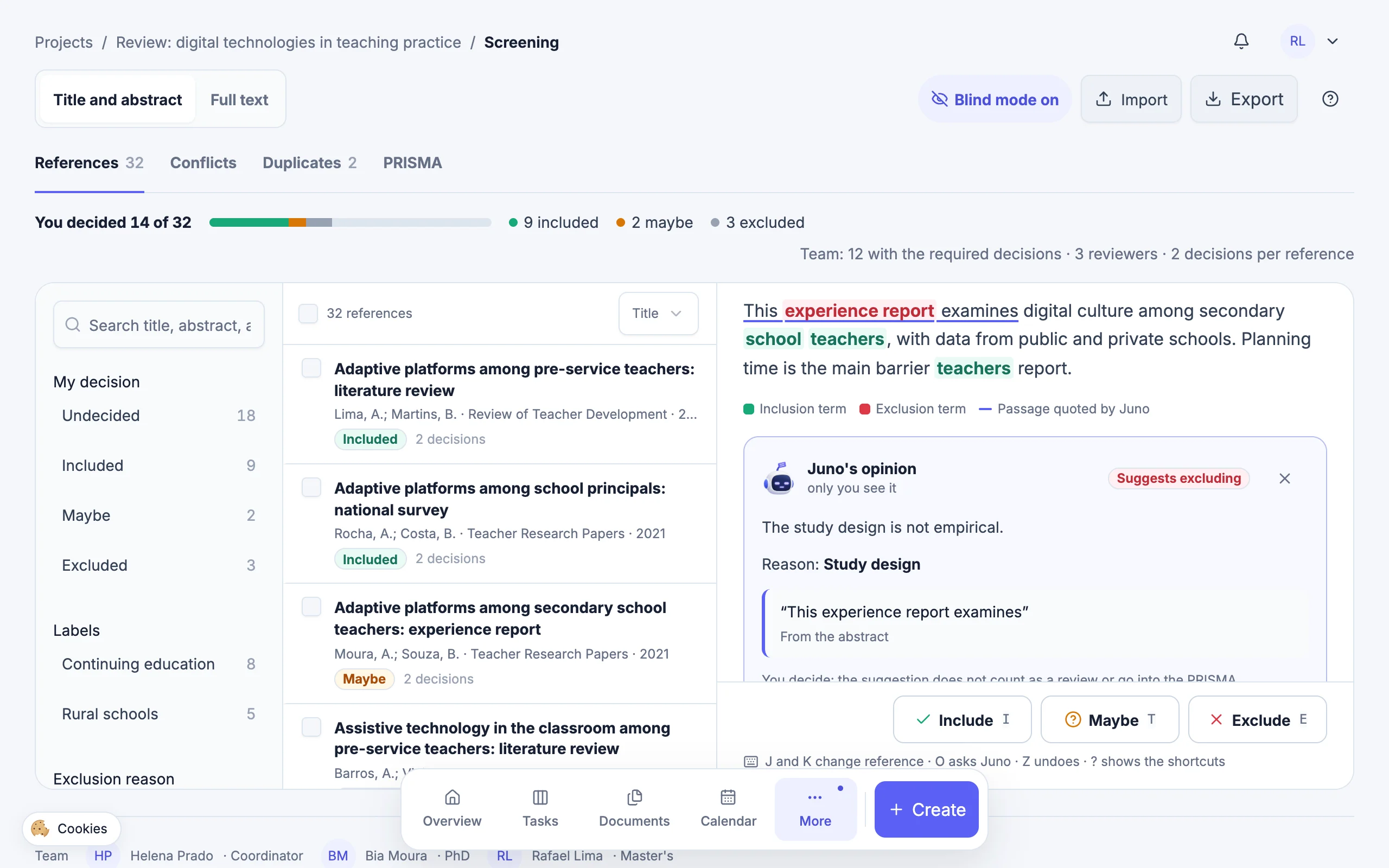
The passage Juno relied on, underlined in the abstract.
The card with the suggestion; only you see it.
The reason and the quoted passage, checked against the text.
The decision stays with you, on the buttons.
Keyboard shortcuts
| Key | What it does |
|---|---|
| I | Include |
| T | Maybe |
| E | Exclude (asks for the reason) |
| Z | Undo the last decision, while its notice shows |
| J or ↓ | Next reference |
| K or ↑ | Previous reference |
| X | Select or unselect |
| N | Write a note |
| / | Search |
| ? | Show the shortcuts |
Shortcuts do not work while you type or with a window open. In the Duplicates tab, M merges, N marks the pair as different and J and K change pairs.
Who can do what
| Action | Administrator | Member | Viewer |
|---|---|---|---|
| Follow the screening | Yes | Yes | Yes |
| Import, decide, write notes and use labels | Yes | Yes | No |
| Merge duplicates | Yes | Yes | No |
| Change the settings and blind mode | Yes | No | No |
| Resolve conflicts | Yes | No | No |
| Enter PRISMA databases and reports not retrieved | Yes | No | No |
Administrators are blind too while blind mode is on. Decisions by people who left the project still count. Juno never writes decisions; it only reads decisions and notes when summarizing a disagreement, with blind mode off.
Common screening mistakes
- Starting without written criteria. The selection shifts from day to day and is hard to explain in your methods.
- Changing the criteria midway without telling anyone. If you must adjust them, record the change and revisit what was decided under the old rule.
- Leaving maybes for later and forgetting them. Only included studies move on to the full text.
- Excluding without a reason at full text. PRISMA shows “No reason”, and your committee will ask why.
- Turning blind mode off too early. From then on, one reviewer's decision sways the other's.
- Skipping duplicates. The same study screened twice can get two different decisions.
- Treating Juno's opinion as a decision. It is a hunch with a passage from the text: read the abstract and decide yourself.
Create a project with this guide's columns and invite your supervisor.
Create free account